



ParentSquare for Families

What is ParentSquare?
What is ParentSquare?
What is ParentSquare?
ParentSquare is an all-in-one, secure communication platform designed for K-12 schools. PVUSD uses this tools to connect with parents, students and staff. To stay informed, please download the app and check with your school's office to make sure your most recent contact information is in Synergy.
Step 1: Download The App
Step 1: Download The App
Step 1: Download The App
Although you are already set to receive notifications from ParentSquare, downloading the mobile app is the easiest way to receive Posts, Events, Sign Up Requests, Photos, and Files—and to start new direct messages.


step 3: Create a password
step 3: Create a password
step 3: Create a password
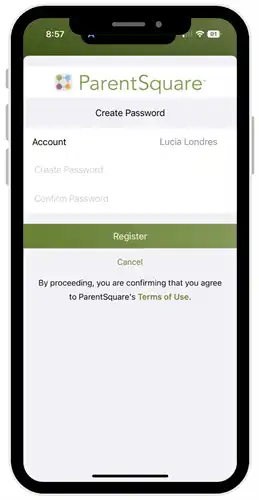
When creating a password, your password must:
- Be at least 8 characters long
- Use a combination of uppercase letters, lowercase letters, numbers and symbols
- Avoid common password words and patterns like "1Password!" and "reallylongpassword1"
- Avoid reusing passwords you've used for other websites
After entering your password twice, tap “register”.
Step 2: Enter Your account information
Step 2: Enter Your account information
Step 2: Enter Your account information
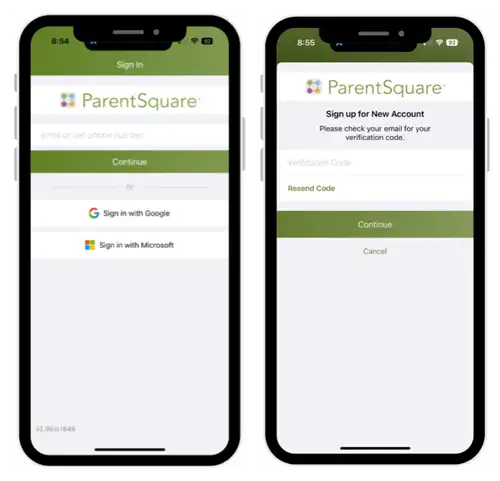
Open the app and type in your phone number or email address (must match what the school has on record). A verification code will be sent to the email or phone number. Enter the verification code and then tap "continue".
step 4: Confirm the account info
step 4: Confirm the account info
step 4: Confirm the account info
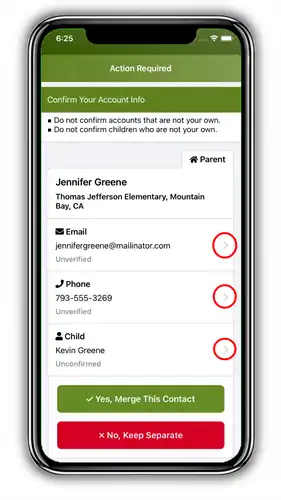
If you have unverified contact information, you will see one or more contact cards with "Action Required", "Confirm Your Account Info." Tap arrow to right of Email and Phone to confirm or edit each one. When you tap "confirm", a verfication code is sent to that email or phone number. Enter the verification code into ParentSquare to confirm. Once you have confirmed all contact info and children associated with your account, tap "Yes, merge this account".
set your notification preferences
set your notification preferences
set your notification preferences
 |
On the app, if you have both app and text notifications on, Post notifications will first be delivered to the app with a text backup when needed. Direct Messages and Alerts will still be sent to text.
Note: In order to receive app notifications on your phone, be sure they are enabled in your phone settings. |
Learn how to Use ParentSQuare
Learn how to Use ParentSQuare
Learn how to Use ParentSQuare
- Intro slide deck in English or in Spanish
- Introduction video (3 minutes) in English or in Spanish
- Steps to register for ParentSquare in English and Spanish
- Training video (14 minutes) in English or in Spanish
- Missing a child or a school in ParentSquare? Combine Accounts in English or Spanish
Important Info for Families:
PVUSD uses ParentSquare for school communication, primarily with email, text and app notifications. For best communication results, we recommend that you download the ParentSquare app to your mobile device! ParentSquare automatically generates an account for each parent, using their preferred email address and phone number. We encourage parents to access their accounts so they can download the mobile app and update their preferences on when and how they are notified. Families should make sure their most recent email address and cell phone number are provided to their child's school site.
About the App:
For best communication results, we recommend that you download the ParentSquare app to your mobile device!
With the ParentSquare app, parents can easily connect with teachers and staff at their children’s school from their smartphone. Here's what parents can do with the app:
- Receive messages from the school via email, text, or app notification
- Choose to receive information as it comes or all at once with a daily digest at 6pm
- Communicate in your preferred language
- Comment on school postings to engage with your school community
- Direct message teachers, staff and other parents
- Participate in group messages
- Sign up for parent-teacher conferences
- Send payments, sign forms & permission slips, receive report cards, sign up to volunteer and more all from your desktop or mobile device
Opt Out:
We promise to only send you information related to school. You can opt-out at any time. See this opt-out document for more information about opting-out from our communications.